
Short answer
In your first week with BuyerSpotter, pick one offer and buyer, enter a few request phrases, and choose sources your account can open. Confirm the first scan finished before judging an empty inbox; it looks back 72 hours. Label matches, change one phrase or source, then decide to continue, refine, or pause.
Let BuyerSpotter watch your groups and searches for you. 5-day trial, no card needed.
Add to ChromeKey takeaways
- Start with one offer and up to 10 phrases; do not mix unrelated services while evaluating.
- The first scan looks back 72 hours, so you can review results on day one.
- A connected network is not a completed scan; check Scan activity before reading an empty inbox as no demand.
- Save, Contacted and Won are your own records; BuyerSpotter never posts or sends messages for you.
- Premium is $39/month or $390/year after a 5-day trial that needs no card.
Before installation: prepare one useful brief
Choose one offer and buyer type. Write the work you provide, the requirements that determine fit, and a few examples of language you would expect in a relevant request. Find a small source set you can open with your own account. Use the source-selection worksheet to check its recent posts and participation rules first.
For current screenshots and step-by-step controls, open the complete BuyerSpotter user guide. Check the BuyerSpotter product page for current installation availability and the official Chrome Web Store link. Install only from that verified listing. The website demonstration shows labeled examples and does not establish live results for your sources.
The labels below were checked against the current product source on 7 September 2026. This is a preparation and evaluation guide, not a claim that installation or all platform scans passed a live test. If your installed version differs, follow its available controls and ask support before relying on a missing step.
Keep a setup receipt before the first review
Keep your working brief and exact phrases beside the setup record. This receipt uses the same clinic-booking scenario as the screenshots and walkthrough.
Worked example · fictional
Swipe sideways for more columns, if needed.
| Setup item | Example value |
|---|---|
| Offer | Website improvements for appointment-based businesses |
| Phrases entered separately | recommend someone to fix our clinic website; booking flow |
| Source example | Independent business owners. Choose actual sources your own account can open and keep their links privately. |
| Intent preference | Ask for a recommendation. In the captured runtime, this preference affects ranking; it does not require a recommendation request for every match. |
| Exclusions | None initially; test a specific repeated mismatch after reviewing examples. |
| State before scanning | Setup recorded. Source completion and useful results are not yet established. |
This is a planning receipt, not a screenshot or a report of a live run. Compare it with your actual settings after saving. If an exclusion was already present, record it too; an unexplained inherited filter can make an empty result difficult to diagnose.
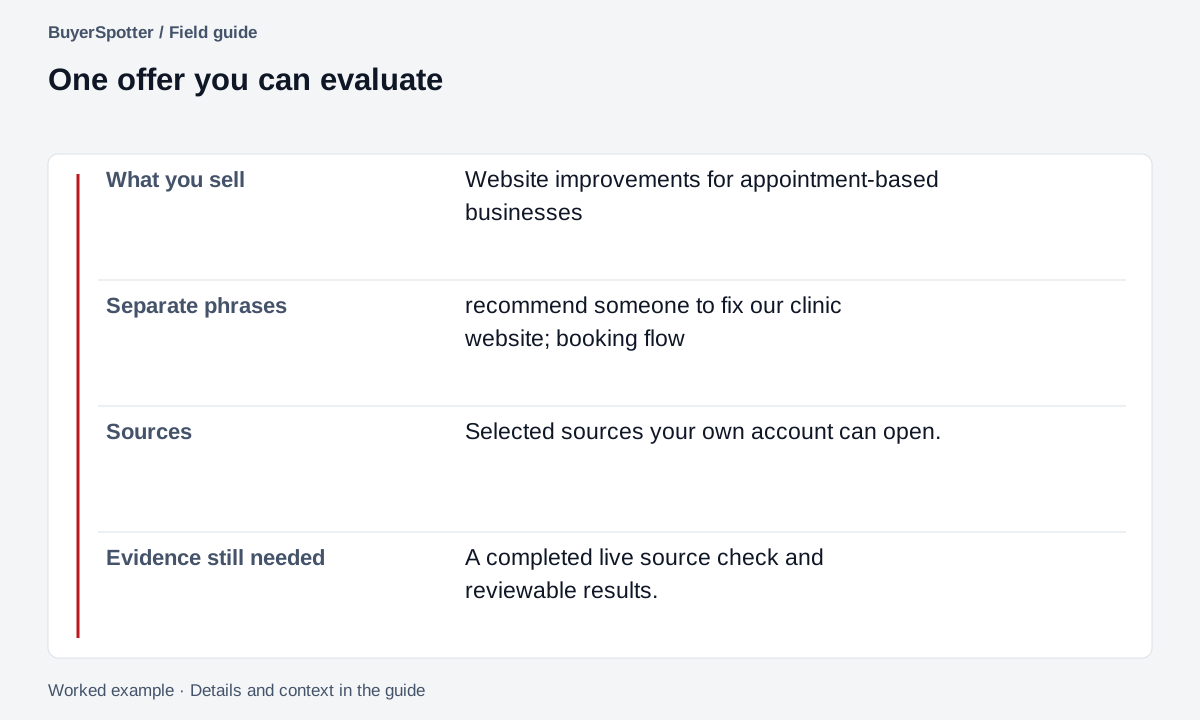
Read the example as text
- What you sell
- Website improvements for appointment-based businesses
- Separate phrases
- recommend someone to fix our clinic website; booking flow
- Sources
- Selected sources your own account can open.
- Evidence still needed
- A completed live source check and reviewable results.

First session: enter phrases and choose where to look
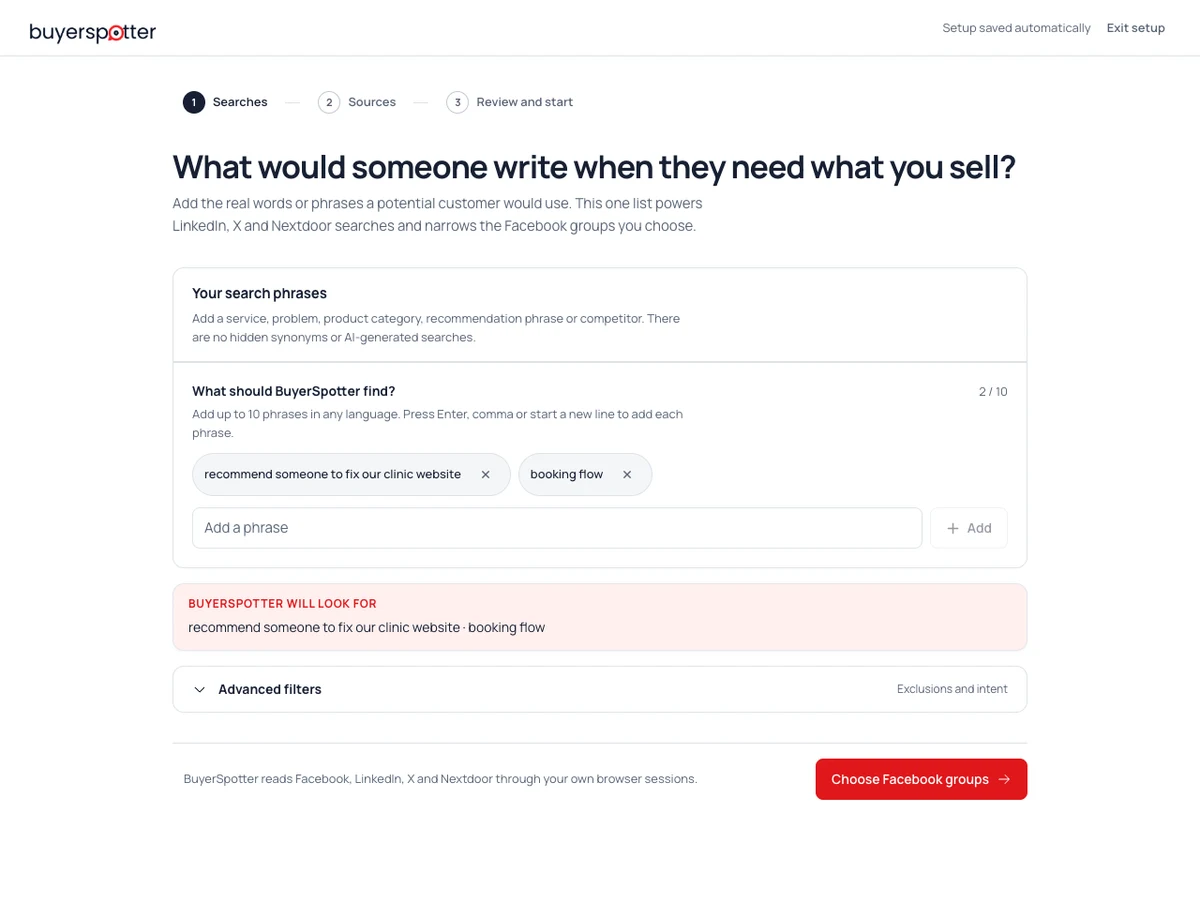
Once a verified installation is available, use one focused setup rather than mixing unrelated services. The current setup starts with Your search phrases. Enter each phrase separately under What should BuyerSpotter find?; Use Enter or Add, and verify that a separate phrase entry appears. The limit is 10 phrases.
- Start with the concrete phrases in the example below. Review what each would include; these are starter hypotheses, not measured popular searches.
- Open Advanced filters to check the selected intent and any exclusions. This example selects Ask for a recommendation under Who are you looking for? and starts with no exclusions. Always ignore excludes matching phrases; a broad exclusion can remove a useful request too.
- Continue with Choose Facebook groups if that source is available and relevant. Select only groups your account can access. Skip a network you do not use rather than treating it as configured.
- Continue through Sources to Review and start. Check the selected sources and settings, then choose Start finding leads. Opening the dashboard does not establish completed source checks.
To revise the definition later, open Searches & schedule and choose Edit. Its editor has What you sell, Look for and Always ignore, followed by Save changes. Source selection lives separately under Sources & area. These labels describe the code-reviewed flow; check the controls available in your installed version.
Start with your search phrases
Example phrases: recommend someone to fix our clinic website; booking flow.
Know which questions the match can answer
BuyerSpotter's code-reviewed 0.8.6 workflow uses keyword matching and rule-based request signals, not AI. The inbox preserves the post and match evidence. It does not confirm that your agency supports the clinic's booking system or can deliver a fix.
In this example, booking flow can appear in a provider request, a tutorial or a seller's announcement. The close mismatch is: "Our clinic’s mobile booking page is broken. Can anyone share a tutorial so I can fix it myself? We are not looking to hire someone." The captured runtime rejects this exact sentence because neither monitored phrase occurs; it does not establish that the system understands the DIY boundary. A DIY post that does contain a monitored phrase can still need human rejection. Read the original wording before deciding to reply.
- Keep the phrases and exclusions you entered with the setup record.
- Check which selected sources completed and which still need attention.
- Read a surfaced post alongside its match evidence, then open the current original conversation.
- Check the booking system, failing step and your own capacity before offering work.
You can follow this same clinic request in the product walkthrough before installation. The walkthrough uses sample data; the live checks below are separate.
Use one offer to make the results explainable
Example
The agency offers website improvements for appointment-based businesses. Its brief is: "I improve websites for appointment-based businesses. Look for owners asking for help with mobile booking, usability or an existing site; exclude agency promotions and job ads."
Enter these phrases separately, as shown in the setup screenshot:
recommend someone to fix our clinic websiteandbooking flow.The source example is Independent business owners. In practice, choose a community your account can open and inspect its rules. No membership or permission to reply is implied by this fictional source.
A phrase such as
booking flowcan also retrieve a DIY question or promotion, so keep a request and a close mismatch in your test notes. Do not add branding, SEO and unrelated agency services while you are still evaluating this offer.Draft phrases for your own offer with the keyword builder, then test them against actual posts. The tool generates wording templates, not search-volume estimates.
Review the sources selected for your offer
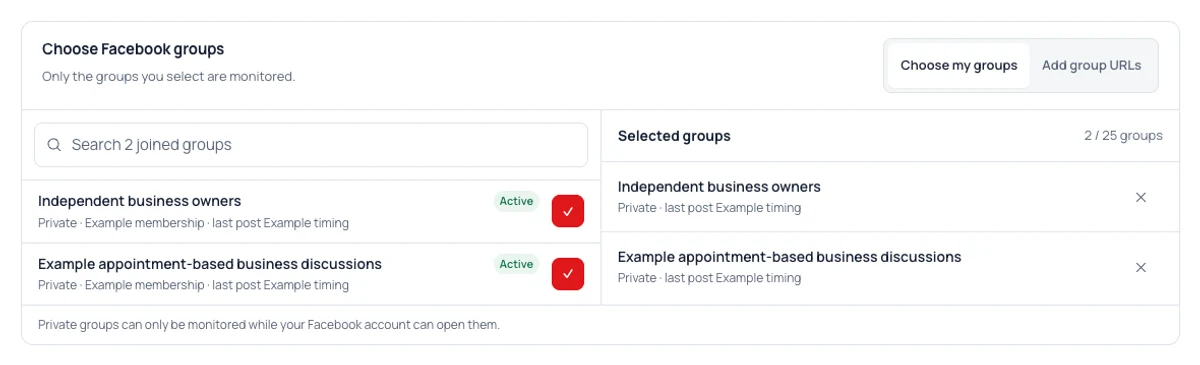
Check completion before judging an empty inbox
In the dashboard, open Scan activity. Use Scan now when available, then inspect Latest scan, Networks finished and each network's status. Open View technical details when you need source coverage information. Use Sources & area to change selected sources, distance or connections. Keep the date and observed states with your review.
The first-scan walkthrough shows the current controls and explains how to distinguish a completed scan from a partial one.
Swipe sideways for more columns, if needed.
| What you see | What it establishes | Next check |
|---|---|---|
| Networks connected | Connection state, not completed reading. | Inspect completed source checks for the run. |
| A network needs reconnection | Its browser session needs attention. | Choose Reconnect in Scan activity, complete the normal sign-in flow, then return and verify the network's state again. |
| Failed or remaining checks | The selected scope was not completely checked. | Keep the source-status details; resolve the stated issue before using its result count. |
| Completed checks, no useful matches | No useful result in that checked sample. | Inspect a few source posts, the phrases and exclusions. Do not infer no market demand. |
If a source remains unresolved, use Help & support or contact support with the product version, source name and non-sensitive error text. Do not send passwords, cookies, account tokens or private post contents.
The 5-day Premium trial starts after the first successful live scan, without a card. Read the browser and scheduling requirements before leaving a scan unattended. None of the states in this guide is a report of a live scan performed for this article.
Use the source state to choose the next task
Two empty inboxes can need different fixes. If a run has failed or remaining source checks, record and resolve that state first. Adding synonyms does not demonstrate that the source was read. If the relevant checks completed, open a few original posts within that period and compare them with your brief.
Worked example · fictional
Incomplete example: the inbox is empty and a selected source still needs sign-in. Finish the normal sign-in flow and verify its state again.
Completed-sample example: the source checks completed, but the reviewed posts discuss DIY website tutorials rather than hiring help. Inspect whether this source contains provider requests before adding phrases. One small sample does not establish a lack of market demand.
Keep the date, product version and non-sensitive status wording with the receipt. That makes a support request useful without sharing credentials or private post contents.
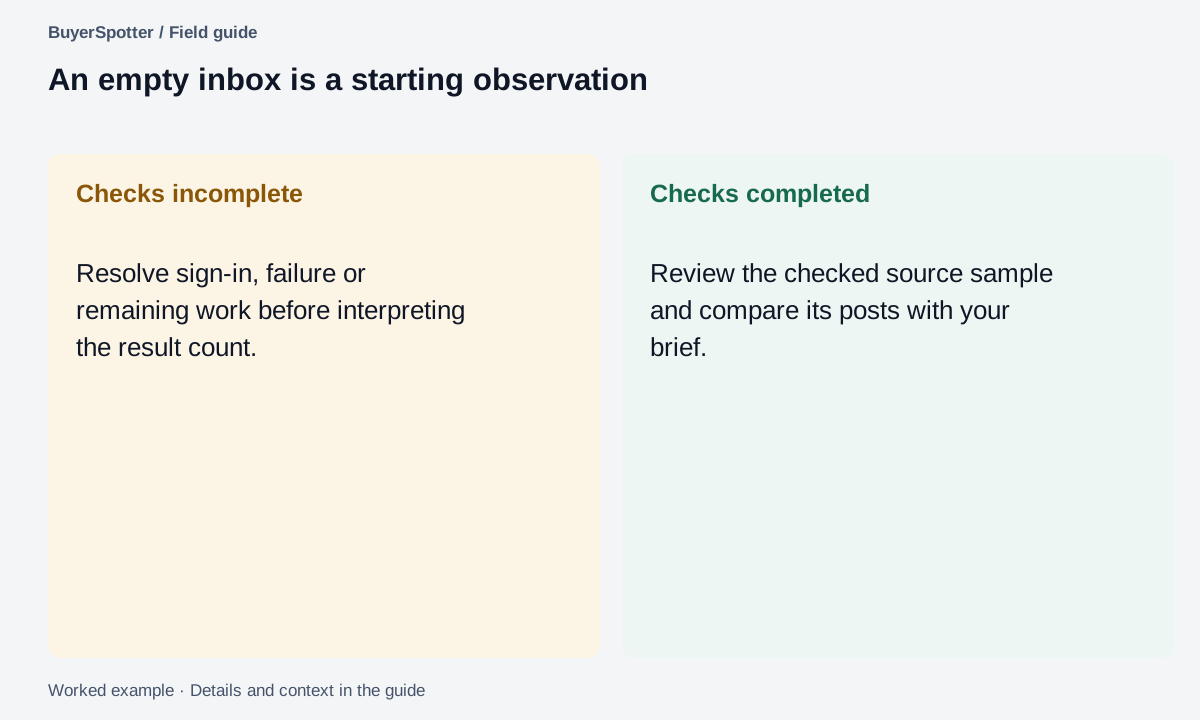
Read the example as text
- Checks incomplete
- Resolve sign-in, failure or remaining work before interpreting the result count.
- Checks completed
- Review the checked source sample and compare its posts with your brief.
Practice keeping one useful opportunity on track
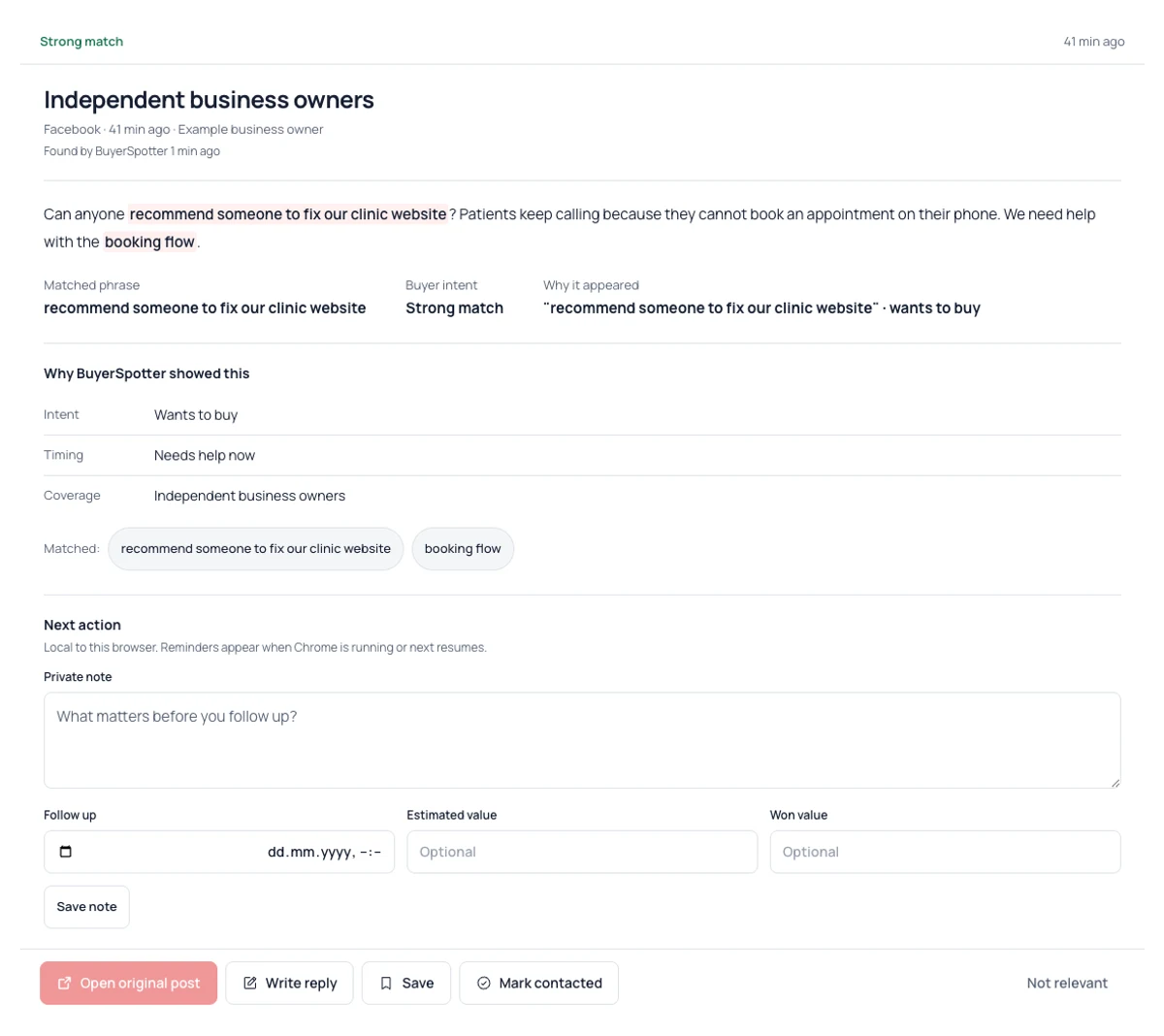
A useful match still needs a decision. Open the original conversation and check whether the request is current, whether you can deliver the work, and whether the community allows a relevant response. Save it if it deserves another look. Saving a post does not contact its author.
Example
The agency reviews the same clinic request: "Can anyone recommend someone to fix our clinic website? Patients keep calling because they cannot book an appointment on their phone. We need help with the booking flow."
Before responding, it needs to inspect the mobile flow and confirm the booking system. It saves the opportunity and adds this private note:
"Review the mobile booking path and ask which booking system is used. Propose a scoped review, not an unverified revenue claim."
If the agency cannot review it now, it can choose a follow-up time. After writing an appropriate response in the original conversation, it marks the opportunity Contacted.
- Save when you want to return to a relevant request or check an unresolved detail.
- Add a private note under Next action, then choose Save note.
- Choose a Follow up time when a later review makes sense, then choose Save reminder. Reminders appear while Chrome is running or when it next resumes.
- Choose Mark contacted only after you actually send your response. BuyerSpotter does not send it for you.
Notes and workflow details stay local to your browser. A saved opportunity is a review decision; Contacted records your action. Neither proves that the buyer replied or hired you.
Prefer to see the sequence first? Try the same clinic-booking example and three-step overview. It uses fictional content to explain the workflow. Saving and adding notes happen in the extension, not on the homepage.
Keep the request and the next action together
Keep the next action separate from the outcome
Worked example · fictional
Swipe sideways for more columns, if needed.
| Moment | What to record | What it does not mean |
|---|---|---|
| Saved for review | Review the mobile booking path and ask which booking system is used. Propose a scoped review, not an unverified revenue claim. | The author has not been contacted. |
| Original thread opened | Read the latest context and check whether a reply is appropriate. | Opening the post is not sending a response. |
| Response actually sent | Record the date and mark Contacted after your action. | The buyer has not necessarily replied. |
| Buyer replies | Record the answer and an agreed next action in your own notes. | A conversation is not an agreed project or payment. |
At the next review, start with useful requests that are still waiting on your decision. If you cannot act before the buyer's stated timing, close the item or record why you are leaving it. A follow-up time is a reminder to review; it is not permission for repeated outreach.
This sequence is a practice example. Verify the controls in the version you use, and keep the public website walkthrough separate from your actual opportunity records.
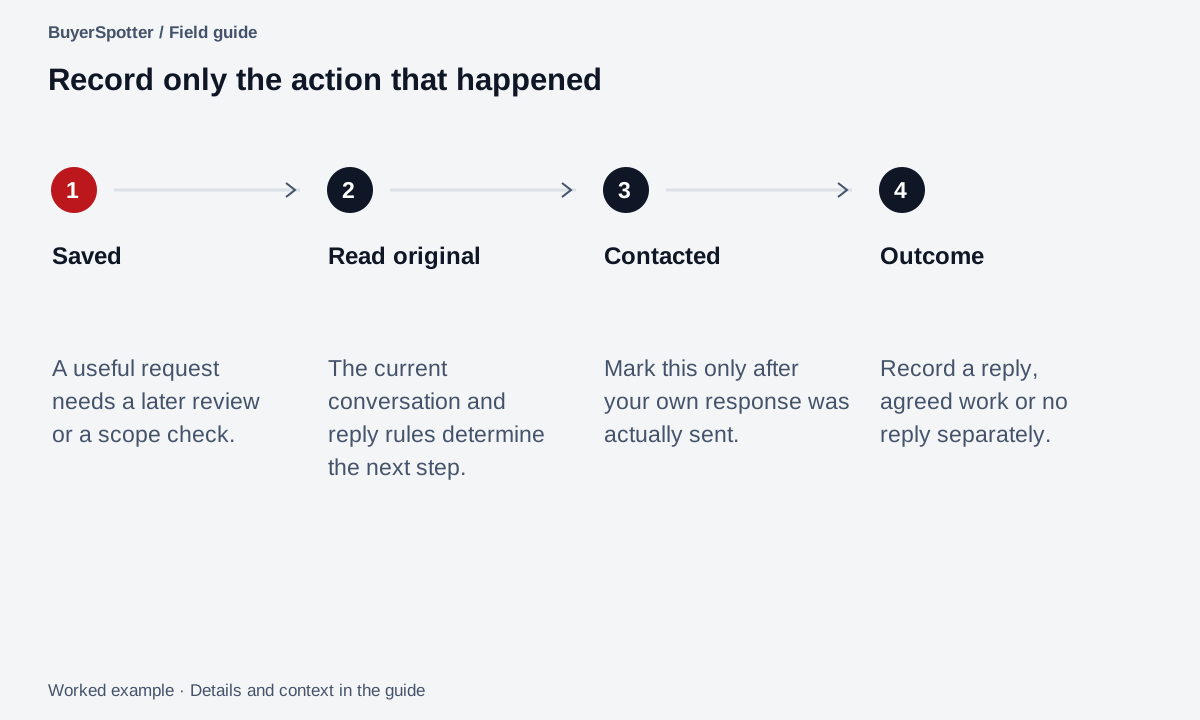
Read the example as text
- Saved
- A useful request needs a later review or a scope check.
- Read original
- The current conversation and reply rules determine the next step.
- Contacted
- Mark this only after your own response was actually sent.
- Outcome
- Record a reply, agreed work or no reply separately.
During the week: learn from the first results
- Open original conversations and label matches useful, unclear, or irrelevant in your review notes.
- Record one reason for each rejected match.
- Check a small sample of source posts for useful requests you missed.
- Change one phrase or source based on the most common problem.
- Compare the next review with the first, keeping the dates and configuration.
The match-quality guide supplies the arithmetic and explains why a useful-result rate is not the same as recall. If one mismatch keeps returning, use the noise-reduction exercise before expanding the source list.
Respond only where the request fits and a response is appropriate. BuyerSpotter does not post or message on your behalf.
Give each session a concrete output
This is a suggested evaluation schedule, not an estimate of installation time or a promise of daily buyer requests. Move to the next step when you have its evidence.
Swipe sideways for more columns, if needed.
| Session | Work | Output to keep |
|---|---|---|
| Preparation | Define one offer and inspect candidate sources | A brief and source links |
| First scan | Check availability, setup, source access, and actual completion | The scan date and observed source states |
| First review | Open original posts and label fit | Useful, unclear, and irrelevant examples |
| One adjustment | Address the most repeated mismatch | The exact phrase or source change |
| Follow-up review | Compare a similar sample and inspect known requests | A decision to continue, refine, or pause expansion |
If a scan remains unresolved, the next output is an accurate source-status note, not a quality percentage. If the source itself contains few requests, record that observation before expanding the phrase list.
Copy a first-week review worksheet
Keep one copy for each focused search. Use the same review period when comparing results, and leave unknowns marked unknown. Record Contacted only for outreach you actually made.
Review period: [start and end dates]
Offer and buyer: [one focused brief]
Installation availability checked: [date]
Sources we can access: [links]
First successful scan verified: [date and evidence]
Source needing attention: [state and next step]
Useful / unclear / irrelevant matches: [counts]
Main rejection reason: [observed]
Known source requests checked: [links]

One useful opportunity to practice with:
Original request: [source link]
Why it fits: [specific need and offer fit]
Question to check before replying: [unresolved detail]
Status: [New / Saved / Contacted]
Private note: [next question or action, optional]
Follow-up time: [chosen time, optional]
Outreach actually sent: [date or not contacted]
Buyer response: [observed response or no response yet]

Weekly review:
Saved for another look: [count]
Actually contacted: [count]
Replies received: [count; do not count link clicks]
Useful requests still waiting on me: [count and next action]
One adjustment made: [change and date]
End-of-week decision: [continue / refine / pause]
The worksheet is a personal review aid, not an automated report. You record replies yourself. Do not treat a Save action, a copied draft, or an opened post as proof of outreach or revenue.
End the week with an evidence-based decision
Continue when the sources contain relevant requests and the review effort is manageable. Refine when the same false-positive pattern repeats. Pause expansion when you still cannot verify scans or explain the results.
Premium is $39 USD monthly or $390 USD annually. Check the current plan details before upgrading. Decide using your own observed workflow, not the example volume on the website. A week with few requests is information about that sample, not a guarantee about future demand.
Sources and method
Product references: BuyerSpotter's workflow and plan information. Field names, navigation and scan-status controls were checked against BuyerSpotter's current setup and workspace source on 7 September 2026. Plan constants specify $39 monthly, $390 annually and a 5-day Premium trial.
This article has not been validated as an installed-extension walkthrough. The session schedule, example phrases and review worksheet are editorial guidance, not promised setup duration, keyword demand or live source results. Check installation availability and the version you use before following the setup.
Frequently asked questions
How do I set up BuyerSpotter?
Install the Chrome extension, enter your search phrases, choose the groups and networks to watch and start the first scan. The user guide shows each screen.
Why is my BuyerSpotter inbox empty after setup?
Check Scan activity to confirm each network finished and none needs reconnection. If checks completed, review your phrases and exclusions and look at a few source posts before concluding there is no demand.
How long is the BuyerSpotter free trial?
Five days, with no card required. Premium then costs $39 USD per month or $390 USD per year.
Does BuyerSpotter keep checking when Chrome is closed?
No. It checks sources only while desktop Chrome is open, every 15, 30 or 45 minutes depending on how many groups and phrases you use.
Examples, sources and image method
Original worked examples and worksheets by BuyerSpotter. Requests and sample datasets are fictional. References are linked where used.
Screenshots show the real BuyerSpotter interface with fictional requests. They illustrate the controls, not a live scan. Product version 0.8.6. Screenshots show the current interface with example data.